
The home screen always shows your next task, so you know what to do at every stop.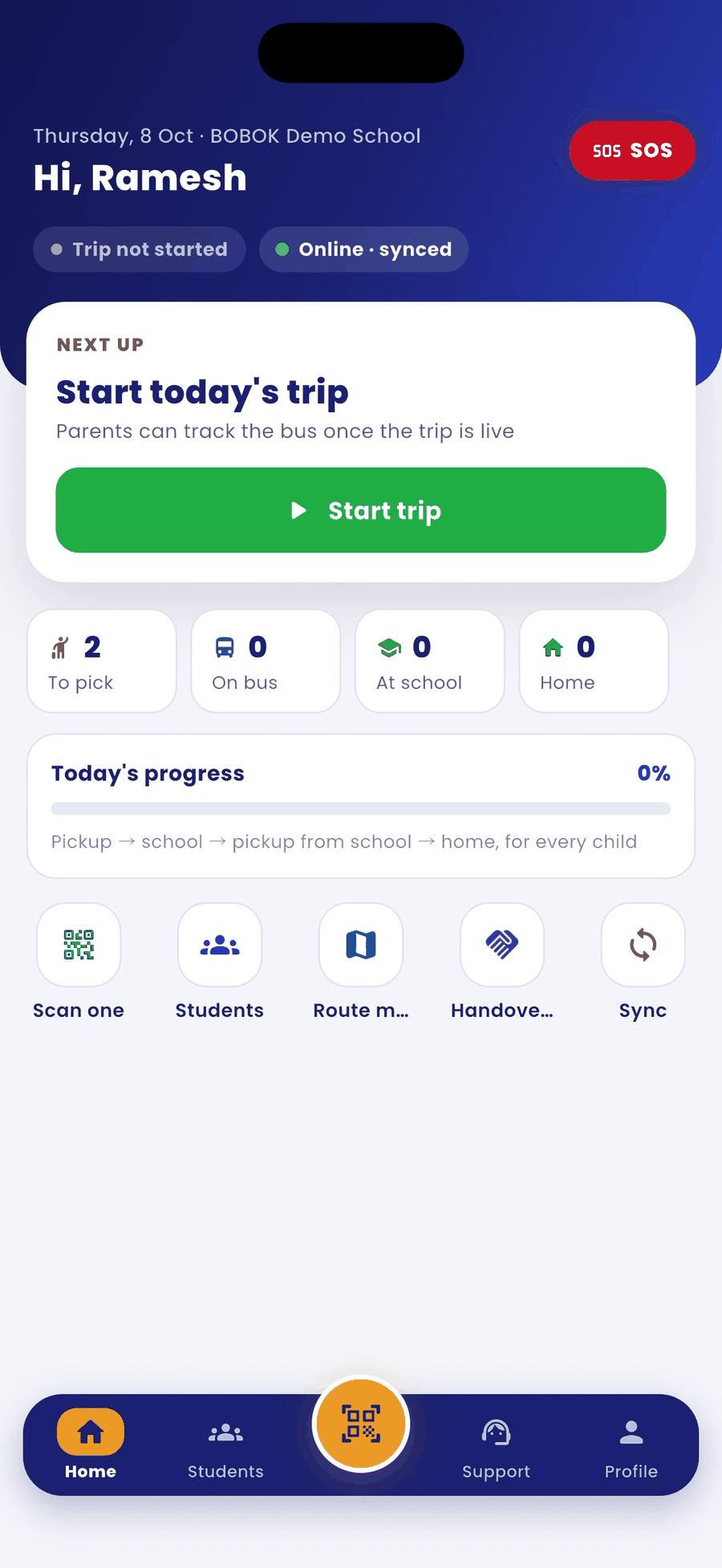
Top of the screen
- Today's date, your school and a greeting with your name.
- The red SOS button for emergencies.
- Status chips: Trip not started or Trip live, and Online · synced.
Next up card
Your next task with one big button, for example Start trip, Scan at pickup or Scan at school gate.
Counters and progress
- To pick, On bus, At school, Home: how many children are at each stage.
- Today's progress: pickup → school → pickup from school → home, for every child.
Shortcuts
- Scan one, Students, Route map, Handovers and Sync.
- The bottom bar has Home, Students, the scan button, Support and Profile.